
We will be glad to assist with your Parrot warranty claim!
We will need some information from the drone pilot, as explained below.
(A) Data Collection
- Pilot First Name
- Pilot Last Name
- Pilot Phone Number
- Pilot Email Address
- Case Type (Warranty or Non-Warranty)
- Aircraft Type
- Aircraft Serial Number
- Ground Control Station Serial Number
- Aircraft Firmware Version
- Ground Control Station Firmware Version
- Freeflight Version
- Date and TIME of the incident (or when fault was detected)
- Detailed Description (can attach files up to 20MB total)
- FDR logs (see point B below)
- Pick Up Address
- Return Address
(B) Share flight data from the drone itself
Anafi UKR Series
(This drone stores logs internally in a folder called log)
1. Create a folder on your desktop named with the drone's serial number.
2. Power on the drone, and connect the drone directly to the PC or Laptop using USB-C port underneath the drone's body.
3. The computer will identify the drone as a "removable hard drive".
4. Open the folder called log , select all the files, and copy them.
5. Go to the folder you created on your desktop, and paste all the files you just copied.
6. Compress that folder into a .zip file
7. Upload the .zip file at https://www.dropbox.com/request/OlDLdKL9OoLVR4FHY0re
8. If that link does not work, please use https://forms.gle/1QLf9mWBghqP9DnC8
(C) Share data from the ground control station [controller]
- Boot the SkyController UKR, then connect it to a computer via the Ethernet port of the controller.
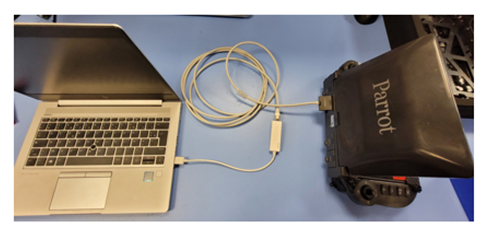
- If your computer is not equipped with an Ethernet (RJ45) port, use a RJ45 to USB adaptor to connect to the USB-A port of your computer
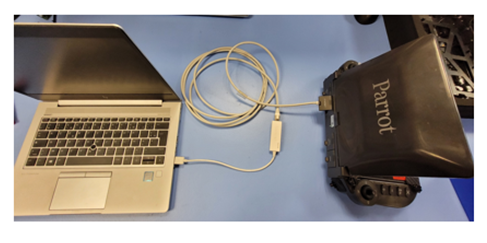
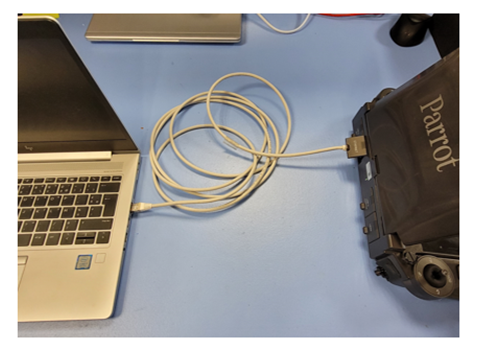
- If your computer is equipped with an Ethernet (RJ45) port, connect directly the Controller to the computer via Ethernet cable.
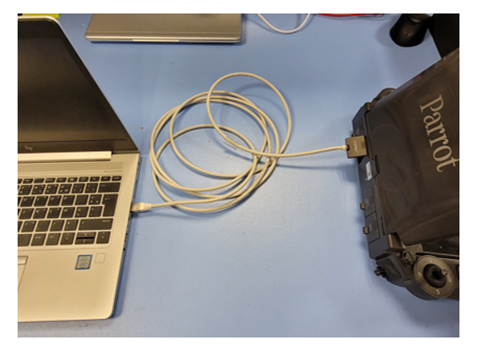
- If your computer is not equipped with an Ethernet (RJ45) port, use a RJ45 to USB adaptor to connect to the USB-A port of your computer
- Open an internet browser on your computer and enter the following IP address http://192.168.53.1/ or http://192.168.54.1/ (depending on Controller firmware version) to access Controller web server.
- Click the “FDR” tab to access Controller logs. Download all available files!
- Once you have these logs:
1. Please compress that folder into a single .zip file.
2. Please upload the file to https://www.dropbox.com/request/OlDLdKL9OoLVR4FHY0re and notify us once this is completed.
3. If that link does not work, please upload to https://forms.gle/1QLf9mWBghqP9DnC8
Once you have this information, please open a ticket at any time at https://darleysupport.freshdesk.com/support/tickets/new
You can also check on status updates for your ticket at https://darleysupport.freshdesk.com/support/tickets once you create a portal account!
Should you have any questions, give us a call! Our team is available Monday through Friday, 9:30AM to 5:30PM Eastern
Thanks!
Darley Support Team
1-888-427-9611